The History of Wi-Fi

Wi‑Fi didn’t just appear one day — it’s the result of wartime innovation, Cold War engineering, and a handful of brilliant, unlikely pioneers. In this class from wifi-U’s Wireless Essentials Program, we trace the remarkable journey from early spread‑spectrum experiments to the creation of the first 802.11 standard in 1997.

This is the first session in the Wireless Essentials program, designed to give you the historical and technical foundation behind the wireless systems we rely on today.

With over 18 billion wireless devices in use worldwide, understanding where Wi‑Fi came from is more important than ever.
 

Miami Training
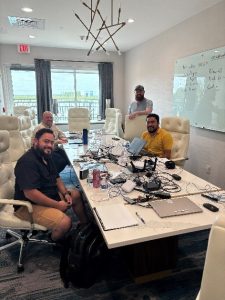
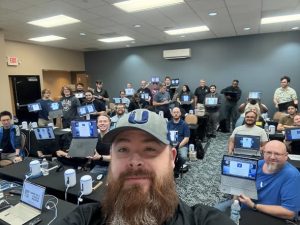
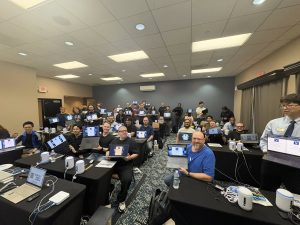
This past week in Miami wifi-U taught our largest class yet of 34 Micro Center “Champions.”
They came from all over the country and were best sellers in their stores!
Our instructors taught UFSP and UWA over 3 days.
Can’t wait to see what’s next, big congrats to all of our students and instructors!
 
wifi-U lands in Aruba 🌐
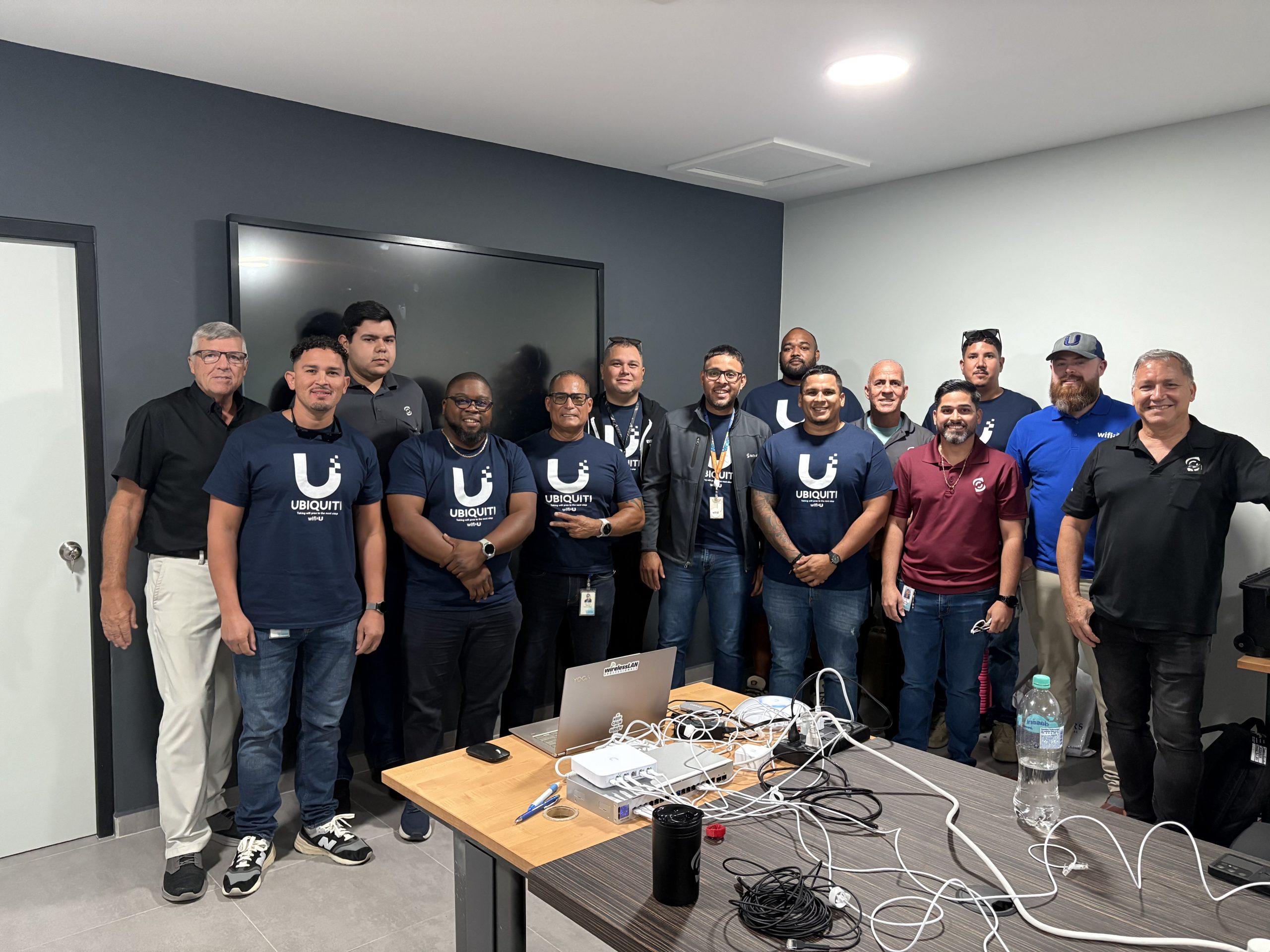
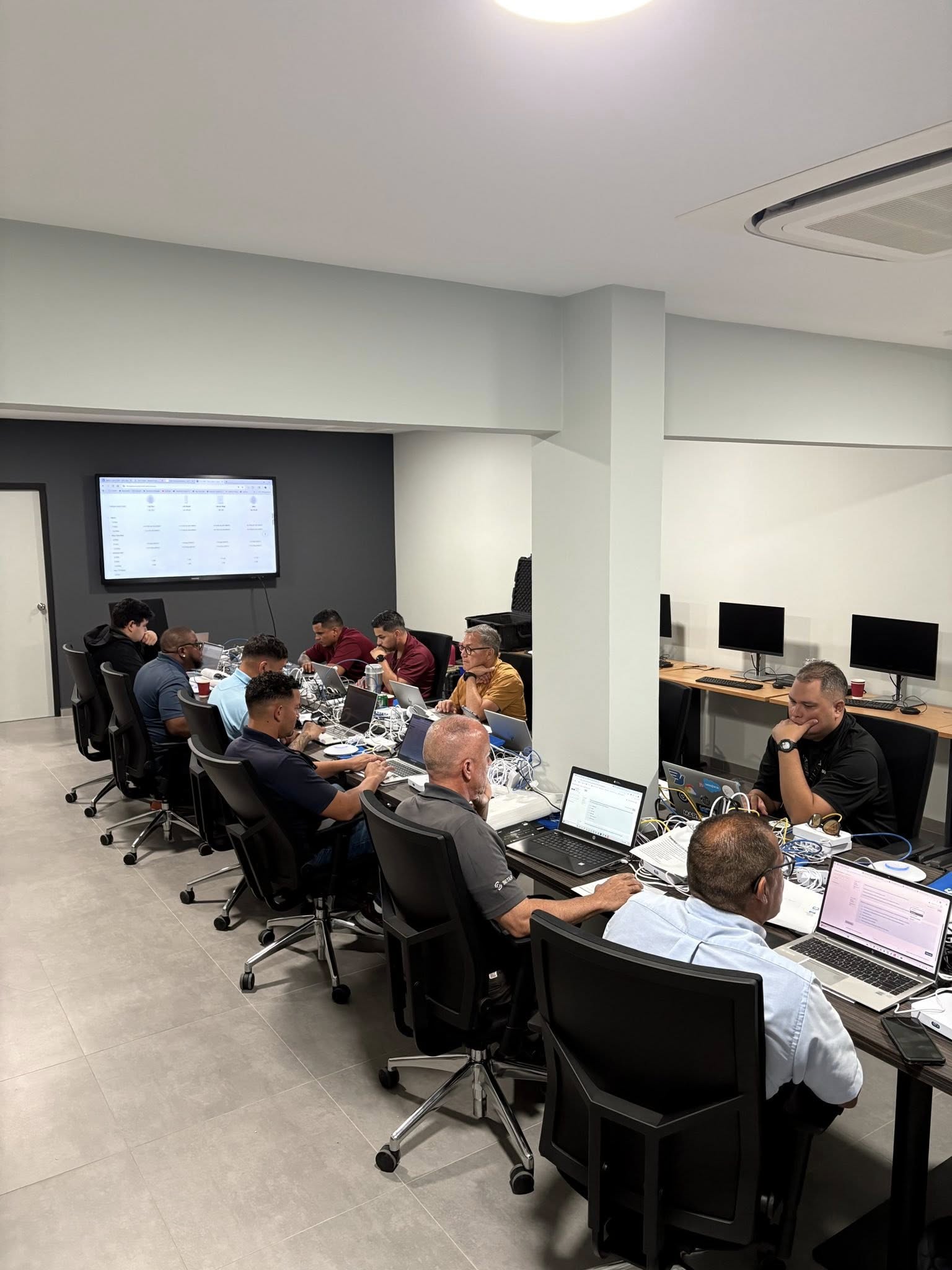
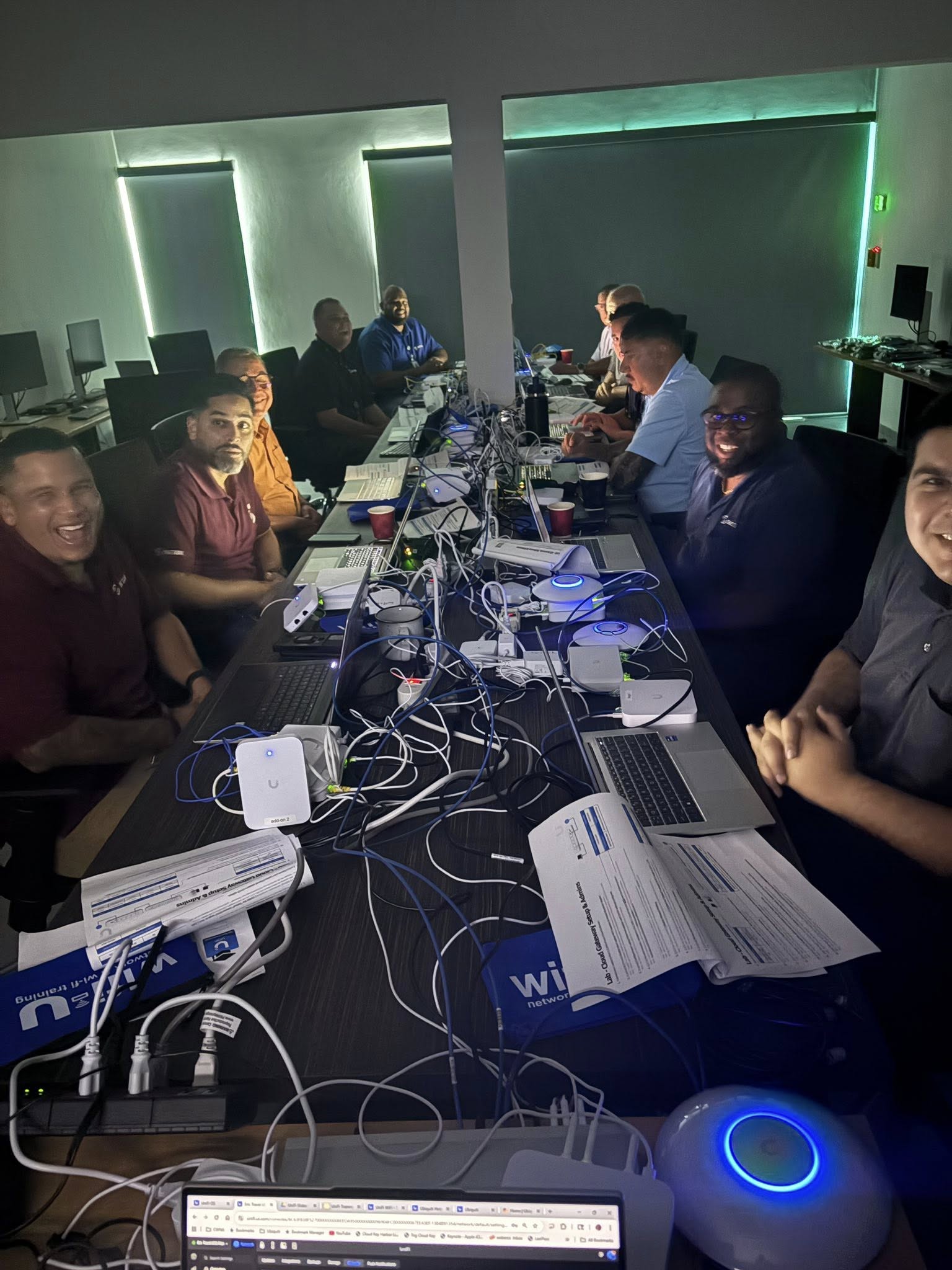
This month, we teamed up with Setar Networks—the powerhouse behind Aruba’s Cellular, Wi-Fi, and IPTV—for a private training at their HQ. Our crew trained 12 brilliant minds in Full Stack, UWA, and URSCA.
Big shoutout to our newest instructor, Cody Palmer, who wrapped up URSCA with a perfect finish: 12 smiling faces, 12 certifications. ✅
Island views were stunning, but the real highlight? Watching a team level up together. 💪
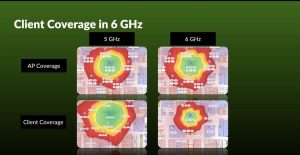
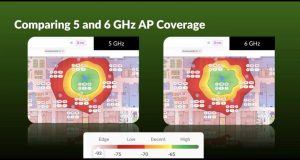
📡 6GHz vs. 5GHz — What’s the REAL story on coverage?

15 years ago, moving from 2.4GHz to 5GHz meant cutting coverage in half. Now we’re stepping into the 6GHz era… but how does it stack up?

  • At first glance, 5GHz and 6GHz APs have similar coverage areas.
  • BUT client devices on 6GHz must transmit at lower power (6dB less), due to FCC rules.
  • That means the effective range for devices is smaller, even if the APs look similar on paper.
  • To keep performance consistent, we’ll need to lower AP transmit power and move APs closer to users—just like we did during the 2.4 to 5GHz shift.
  • Planning for 6GHz? Build smart. Design tight.
Author: Eric Weber
🚫 UniFi Owner Lockout: The Problem

When the user with UniFi Owner privileges leaves the company, you’re stuck. As of now, there’s no password reset option for the Owner account. The only recourse? A Factory Reset of the Console—which can trigger a cascade of device resets across the site.

✅ Ways to Mitigate the Impact

1. Super Admin Workaround

  • If you only have Super Admin access:
  • “Forget” all devices before performing a Factory Reset.
  • After the reset, once the Console is back online, you can re-adopt the devices.
  • ⚠️ You won’t be able to restore from a backup, as that’s reserved for the Owner.

2. Preserve Your Naming Scheme

  • Before resetting:
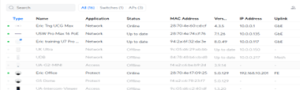
  • Take screenshots of the Devices page to retain names and configurations when re-adopting.

🛡 Best Practices to Prevent This Scenario

Option 1: Shared Owner Access

  • Create a role-based email (e.g., support@it.net) and assign it the Owner role.
  • Share credentials among trusted staff.
  • ⚠️ Trade-off: Shared access complicates accountability and auditing.

Option 2: Use a Managed Email Account with Recovery

  • Assign the Owner role to a mailbox within a managed system like Microsoft 365.
  • Benefits:

– Admins can initiate password recovery without factory resets.

– MFA can be reassigned or reset via centralized email tools.

Author: Eric Weber

Challenges Network Admins Face in Maritime Environments

During our training in Fort Myers, I had the pleasure of meeting Juan Mayorga from Ecuador. He had traveled there to participate in the URSCA course.

Juan is responsible for managing the network infrastructure aboard four cruise ships that operate between Guayaquil and the Galápagos Islands—a role that presents numerous technical challenges.
One of his most pressing difficulties is maintaining reliable network connectivity while at sea and on the islands, where logistical constraints make it nearly impossible to receive replacement hardware. His primary obstacle involves overcoming signal interference caused by metal barriers, which significantly impairs Wi-Fi coverage onboard.

Since the Galapagos is a Scuba diving adventure spot and I had just got back from Scuba diving in Curacao, you can imagine that we got sidetracked quite a bit!

We had a great week of training, including the UFSP, UWA and the URSCA.

Author: Eric Weber

AI Turret Test Rig

Personalize your all-weather, vandal-proof 4K PoE+ turret camera with enhanced AI capabilities and IR and visible LEDs for night vision as you like!
We tested the loitering and cross-line detection.


Author: Ryan Haag


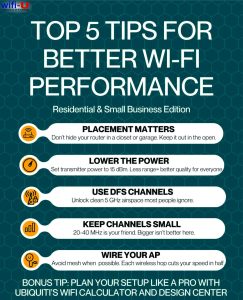
Top 5 Tips for Better Wi-Fi Performance

Top 5 recommendations for better Wi-Fi performance in residential and small business environments.


  1. Placement: Make sure your AP is close to where it will be used by your devices. At full power (not recommended) the highest throughput rate for a U7-Pro XG is 2.16Gbps. At 18 ft the data rate drops to 1.95Gbps, at 40 ft the data rate drops to 650Mbps.  Many residential Wi-Fi routers are placed in a closet, or out in the garage. Move that beautiful router out in the open.
  2. Power: Turn the power from Auto, which equals High, to 15dbm. This will cause your coverage to decrease, which is a good thing.  All clients share airtime so clients that are far away from the AP will take up more airtime than those that are close, but the result is bad for everyone because even those with a strong signal will be affected by the weaker signal devices.
  3. Use DFS Channels in 5GHz: The middle of the 5Ghz spectrum has 16 20MHz channels that often go unused. If your AP or Router makes those channels available, you can use them.  DFS is a method used to share this airspace with outdoor radar devices.  They rarely interfere with indoor wireless systems but if they ever do DFS is a way to automatically resolve the problem.
  4. Use smaller channels: In 5 GHz  20 and 40MHz channels are best, 80 is a killer and 160 well… If you deploy 80MHz channels you almost certainly are going to suffer from other devices using the same channels.  There are 25 – 20MHz channels in 5GHz, 12 40MHz channels, and only 6 80MHz.
  5. Add lots of APs: Preferably wired APs. Every time a mesh device is placed in a network it cuts the throughput in half.  So if you have expected throughput of 500mbps and you have four mesh APs your throughput is going to be 30mbps. Don’t let an installer put mesh APs throughout the house.  Have them wired as much as possible.
  6. BONUS: Use the Ubiquiti Wi-Fi calculator to determine throughput https://wifi.ui.com/ and then use the Design Center https://design.ui.com to place your devices and get an idea of your equipment requirements. This will help you have a great Wi-Fi experience.

Author: Eric Weber